


MCP Gateway Setup
Connect one MCP server to all your cloud integrations through the Private or Business Gateway on stackgate.ai.
Overview
The Private Gateway and Business Gateway let you connect one MCP server to every active cloud integration on stackgate.ai, instead of adding a separate endpoint per service.
| Gateway | Endpoint | Best for |
|---|---|---|
| Private Gateway | POST /mcp/private |
Personal integrations on your account |
| Business Gateway | POST /mcp/business |
Company workspaces with allowlists and environments |
Device-bound integrations (Apple Notes, Aula) are not available on cloud HTTP gateways. Use the Stackgate CLI for Aula (stackgate configure). Apple Notes CLI support is not available yet.
When to use gateway vs dedicated endpoints
Dedicated endpoint (/mcp/trello, /mcp/gmail, …)
- Least privilege: scope a token to one integration only
- Smaller tool surface for the AI client
- Good when you only need one service
Gateway (/mcp/private or /mcp/business)
- One MCP config for all connected integrations
- Namespaced tools like
trello__list_boardsandgmail__list_messages - Service discovery via
list_services,describe_service, andsearch_for_integrations - Good for multi-integration workflows and assistants that pick tools dynamically
Default to dedicated endpoints when you know exactly which integration you need. Use a gateway when you want one connection for your whole stack.
Prerequisites
- A stackgate.ai account with at least one connected integration
- An API token scoped to
mcp:private-gatewayand/ormcp:business-gateway(or a narrower server list) - An MCP client that supports HTTP transport (Cursor, Claude Desktop, Claude Code, Claude web, or raw HTTP)
Create tokens under API Tokens in the dashboard. For least privilege, select only the gateway server you need instead of leaving access empty (which grants full access).
Private Gateway
The private gateway exposes every enabled personal integration for your account over cloud HTTP.
Authentication
Send a Sanctum bearer token on every request:
Authorization: Bearer <your-api-token>
Accept: application/json, text/event-stream
Core gateway tools
When the Gateway Tool Cap is active (?max_tools= and enough eligible tools), tools/list exposes discovery and mutation-scoped dispatch tools:
| Tool | Purpose |
|---|---|
list_services |
List connected integrations active for this gateway |
describe_service |
Inspect tools, mutations, schemas, and docs URLs for one integration slug |
search_for_integrations |
Search the full catalog (including integrations not yet enabled); paginated, optional term |
query_data |
Call a read-only (mutation=read) integration tool |
create_data |
Call a create (mutation=create) integration tool |
update_data |
Call an update (mutation=update) integration tool |
delete_data |
Call a delete (mutation=delete) integration tool |
execute_data |
Deprecated catch-all dispatch (hidden when actor=claude) |
stackgate-ai__submit_feedback |
Submit product feedback (always listed when feedback is configured, including under the tool cap) |
Tool names use snake_case without a -tool suffix (for example list_boards, not list-boards-tool).
You can still call integration tools directly with namespaced names when uncapped or when you already know the name.
Namespaced tool names
Integration tools are also available as {integration}__{tool_name} on the gateway, for example:
trello__list_boardsgmail__list_messagesslack__list_channels
Use namespaced names when you already know the tool. Use describe_service when you need to discover available tools for a service.
Example workflow
- Call
list_servicesto see which integrations are active. - Call
describe_servicewithservice: trelloto list Trello tools, mutations, and input schemas. - Call
trello__list_boardsdirectly, or usequery_data/create_data/update_data/delete_datawithservice,tool, andargumentsmatching the tool mutation.
Business Gateway
The business gateway is for company workspaces. It respects:
- Company integration allowlist — only integrations your company admin has enabled appear
- Environments — tokens can be bound to a specific environment; MCP calls use that environment's credentials
- Audit and usage attribution — tool calls are logged with company, environment, and token context
Company members still connect personal credentials for OAuth integrations; the gateway resolves the right credential for the active environment.
Create a token with mcp:business-gateway scope (or select business-gateway under MCP server access). Set an environment on the token when your company uses multiple environments.
Raw HTTP MCP clients
Point any HTTP MCP client at the gateway URL with bearer authentication. Example initialize request:
POST /mcp/private HTTP/1.1
Host: stackgate.ai
Authorization: Bearer <your-api-token>
Accept: application/json, text/event-stream
Content-Type: application/json

{"jsonrpc":"2.0","id":1,"method":"initialize","params":{"protocolVersion":"2024-11-05","capabilities":{},"clientInfo":{"name":"my-client","version":"1.0.0"}}}
Then call tools/list or invoke a namespaced tool with tools/call.
Local device-bound integrations
Aula runs on your machine through the Stackgate CLI. Install with npm install --global @stackgate/cli, then stackgate login, stackgate aula login, and stackgate configure. You do not need to run stackgate.ai locally or install PHP.
Apple Notes must run on your Mac. Connect on the website to store preferences. Stackgate CLI support for Notes is not available yet.
Troubleshooting
| Problem | Likely cause | Fix |
|---|---|---|
| 401 Unauthorized | Missing or invalid API token | Create a new token under API Tokens |
| 403 Forbidden | Token not scoped to this gateway | Recreate token with mcp:private-gateway or mcp:business-gateway |
| Integration missing from gateway | Not connected or disabled | Connect under My Integrations and ensure it is enabled |
| Device-bound integration unavailable | Cloud gateway excludes local-only types | Use the Stackgate CLI for Aula; Notes CLI support is not available yet |
| Tool not found | Wrong namespaced name | Run describe_service for the correct tool slug |
Related docs
- All integrations — per-integration setup guides
- Workflow playbooks — multi-integration recipes
- API reference — endpoint list and authentication overview
Private Gateway — client config
Create an API token scoped to mcp:private-gateway, then add one of these HTTP configs to your MCP client.
{
    "mcpServers": {
        "private-gateway": {
            "url": "https://stackgate.ai/mcp/private?actor=cursor&max_tools=80"
        }
    }
}
This config already uses discovery tool mode to keep the tool list small and control token usage.
File: .cursor/mcp.json (project) or Cursor Settings → MCP
Exposes all cloud-runnable active integrations. Device-bound services (Apple Notes, Aula) need the Stackgate CLI (`stackgate configure`). Sign in via OAuth when your MCP client connects — no API token required in the config.
{
    "mcpServers": {
        "private-gateway": {
            "type": "http",
            "url": "https://stackgate.ai/mcp/private?actor=cursor"
        }
    }
}
If you want to control token usage a bit more, use discovery tool mode: https://stackgate.ai/mcp/private?actor=cursor&max_tools=80
File: .mcp.json in your project root
Exposes all cloud-runnable active integrations. Device-bound services (Apple Notes, Aula) need the Stackgate CLI (`stackgate configure`).
{
    "mcpServers": {
        "private-gateway": {
            "type": "http",
            "url": "https://stackgate.ai/mcp/private?actor=cursor"
        }
    }
}
If you want to control token usage a bit more, use discovery tool mode: https://stackgate.ai/mcp/private?actor=cursor&max_tools=80
File: macOS: ~/Library/Application Support/Claude/claude_desktop_config.json
Exposes all cloud-runnable active integrations. Device-bound services (Apple Notes, Aula) need the Stackgate CLI (`stackgate configure`).
Click the button. Claude opens with the Stackgate connector already filled in. Click Add.
{
    "name": "Stackgate",
    "url": "https://stackgate.ai/mcp/private?actor=cursor"
}
If you want to control token usage a bit more, use discovery tool mode: https://stackgate.ai/mcp/private?actor=cursor&max_tools=80
Where: Claude → Customize → Connectors → Add (Add custom connector)
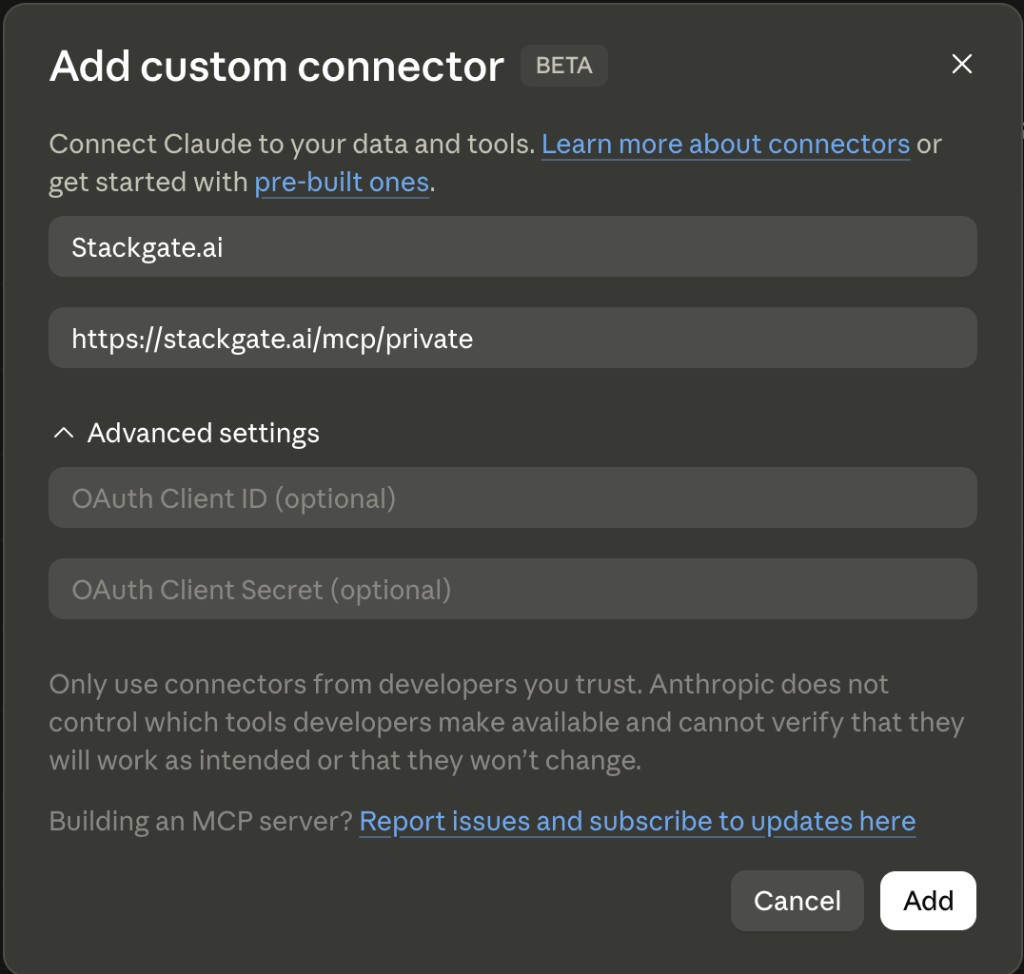
Connect integrations under My Integrations first. Exposes all cloud-runnable active integrations. Device-bound services (Apple Notes, Aula) need the Stackgate CLI (`stackgate configure`).
{
    "name": "Private Gateway",
    "url": "https://stackgate.ai/mcp/private?actor=cursor"
}
If you want to control token usage a bit more, use discovery tool mode: https://stackgate.ai/mcp/private?actor=cursor&max_tools=80
Where: https://chatgpt.com/plugins → + (New Plugin)
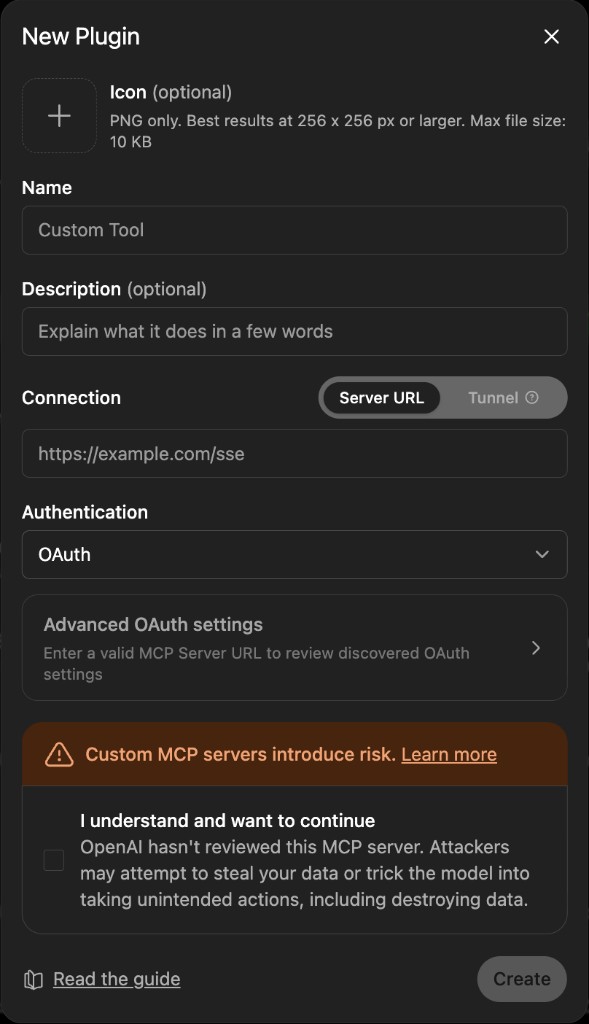
Set Authentication to OAuth. Connect integrations under My Integrations first. Exposes all cloud-runnable active integrations. Device-bound services (Apple Notes, Aula) need the Stackgate CLI (`stackgate configure`).
{
    "mcpServers": {
        "private-gateway": {
            "type": "http",
            "url": "https://stackgate.ai/mcp/private?actor=cursor"
        }
    }
}
If you want to control token usage a bit more, use discovery tool mode: https://stackgate.ai/mcp/private?actor=cursor&max_tools=80
File: Same file as Claude Desktop — claude_desktop_config.json
Exposes all cloud-runnable active integrations. Device-bound services (Apple Notes, Aula) need the Stackgate CLI (`stackgate configure`).
Business Gateway — client config
For company workspaces. Create a token scoped to mcp:business-gateway and optionally bind an environment.
{
    "mcpServers": {
        "business-gateway": {
            "url": "https://stackgate.ai/mcp/business?actor=cursor&max_tools=80"
        }
    }
}
This config already uses discovery tool mode to keep the tool list small and control token usage.
File: .cursor/mcp.json (project) or Cursor Settings → MCP
Exposes all cloud-runnable active integrations. Device-bound services (Apple Notes, Aula) need the Stackgate CLI (`stackgate configure`). Sign in via OAuth when your MCP client connects — no API token required in the config.
{
    "mcpServers": {
        "business-gateway": {
            "type": "http",
            "url": "https://stackgate.ai/mcp/business?actor=cursor"
        }
    }
}
If you want to control token usage a bit more, use discovery tool mode: https://stackgate.ai/mcp/business?actor=cursor&max_tools=80
File: .mcp.json in your project root
Exposes all cloud-runnable active integrations. Device-bound services (Apple Notes, Aula) need the Stackgate CLI (`stackgate configure`).
{
    "mcpServers": {
        "business-gateway": {
            "type": "http",
            "url": "https://stackgate.ai/mcp/business?actor=cursor"
        }
    }
}
If you want to control token usage a bit more, use discovery tool mode: https://stackgate.ai/mcp/business?actor=cursor&max_tools=80
File: macOS: ~/Library/Application Support/Claude/claude_desktop_config.json
Exposes all cloud-runnable active integrations. Device-bound services (Apple Notes, Aula) need the Stackgate CLI (`stackgate configure`).
Click the button. Claude opens with the Stackgate Business connector already filled in. Click Add.
{
    "name": "Stackgate Business",
    "url": "https://stackgate.ai/mcp/business?actor=cursor"
}
If you want to control token usage a bit more, use discovery tool mode: https://stackgate.ai/mcp/business?actor=cursor&max_tools=80
Where: Claude → Customize → Connectors → Add (Add custom connector)
Connect integrations under My Integrations first. Exposes all cloud-runnable active integrations. Device-bound services (Apple Notes, Aula) need the Stackgate CLI (`stackgate configure`).
{
    "name": "Business Gateway",
    "url": "https://stackgate.ai/mcp/business?actor=cursor"
}
If you want to control token usage a bit more, use discovery tool mode: https://stackgate.ai/mcp/business?actor=cursor&max_tools=80
Where: https://chatgpt.com/plugins → + (New Plugin)
Set Authentication to OAuth. Connect integrations under My Integrations first. Exposes all cloud-runnable active integrations. Device-bound services (Apple Notes, Aula) need the Stackgate CLI (`stackgate configure`).
{
    "mcpServers": {
        "business-gateway": {
            "type": "http",
            "url": "https://stackgate.ai/mcp/business?actor=cursor"
        }
    }
}
If you want to control token usage a bit more, use discovery tool mode: https://stackgate.ai/mcp/business?actor=cursor&max_tools=80
File: Same file as Claude Desktop — claude_desktop_config.json
Exposes all cloud-runnable active integrations. Device-bound services (Apple Notes, Aula) need the Stackgate CLI (`stackgate configure`).